From a series of posts including How to comment on a blog and free comment buttons, here's how I put comment buttons on my blog, in 10 easy steps. I hope this makes sense!
These are examples of the buttons that I use:




And here's how it's done. This may seem complicated at first glance but if you do it once, it should be easy and I hope the screenshots help. Please note - this is only the way I do it - if you know of an easier method, please do share!
1. Go to Iarfhlaith's website where he's made this zip file of his buttons available for download. Leave a comment to say thanks ;o) Extract all the buttons to a folder on your computer.
2. Go to http://picasaweb.google.com - this is a photo and graphic site from Google, and works well with blogspot/blogger. I use Firefox 3.0 for blog writing.
Upload all the buttons to a new Picasa album using the easy upload form. You'll end up with an album looking similar to this: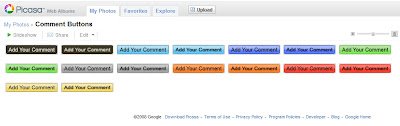
3. Write your blog post as per usual, keeping Picasa open in a separate tab. Once you've finished your post and are ready to add in your comment button, go to where Picasa is open. Choose and click on the button you'd like to add. For this example I'll choose green.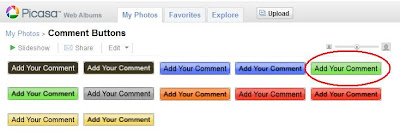
4. Click Embed image on bottom right. Tick the Hide album link box.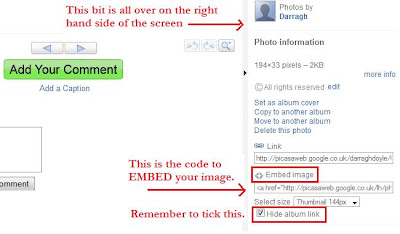
5. Right click with your mouse to copy the code.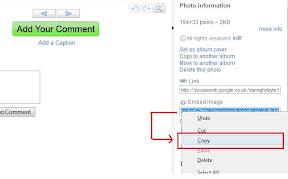
and then paste the code into your Edit Html tab - after all your text. It will look something like this: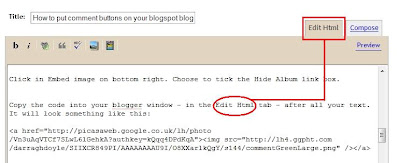
6. Then, switch over to the Compose view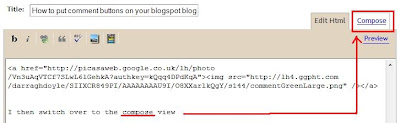
select/highlight the comment button by clicking on it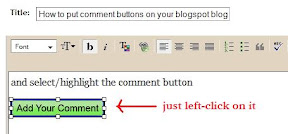
and centre it using the centre button.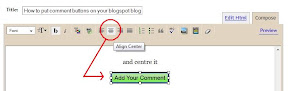
You're nearly finished, I promise. After you fill out your labels and everything, all you have to do is publish your post. First though...
7. Open a new tab with your blog in it.
Press publish on your new post. Once it's published IMMEDIATELY choose to Edit this post again.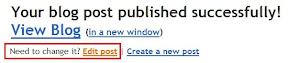
8. Go to the tab with your blog in it and click F5/refresh. You should see your new post there. If everything looks okay, go right down to the end of the post and you'll see a link for 0 Comments. Right click (in Firefox anyhow) and choose to Copy Link Location.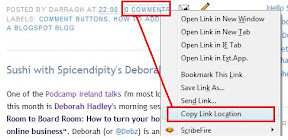
9. Return to your Edit post tab and go to the bottom where you'll see the code for your comment button. Select the URL for the button, then highlight and replace with the comment link.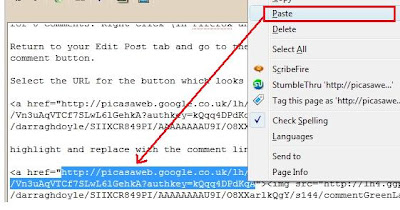

So the code ends up looking something similar to
10. Press publish and that's it! As I said, it appears daunting at first glance, but follow the step-by-step process and you should be fine. It takes me only a couple of seconds each time I do it at this stage :o)
Give it a go and let me know how you get on, please. Any questions, please do let me know.


